Your first chat
Give Era its first job — where to type, what is in the message box, what you see while Era works and how you approve.
Giving Era a job is as easy as writing a message. Say what you want in your own words; Era looks at your business's records with your permissions, does the work, and asks you before a step like money, a message to someone else or deleting.
Where to type
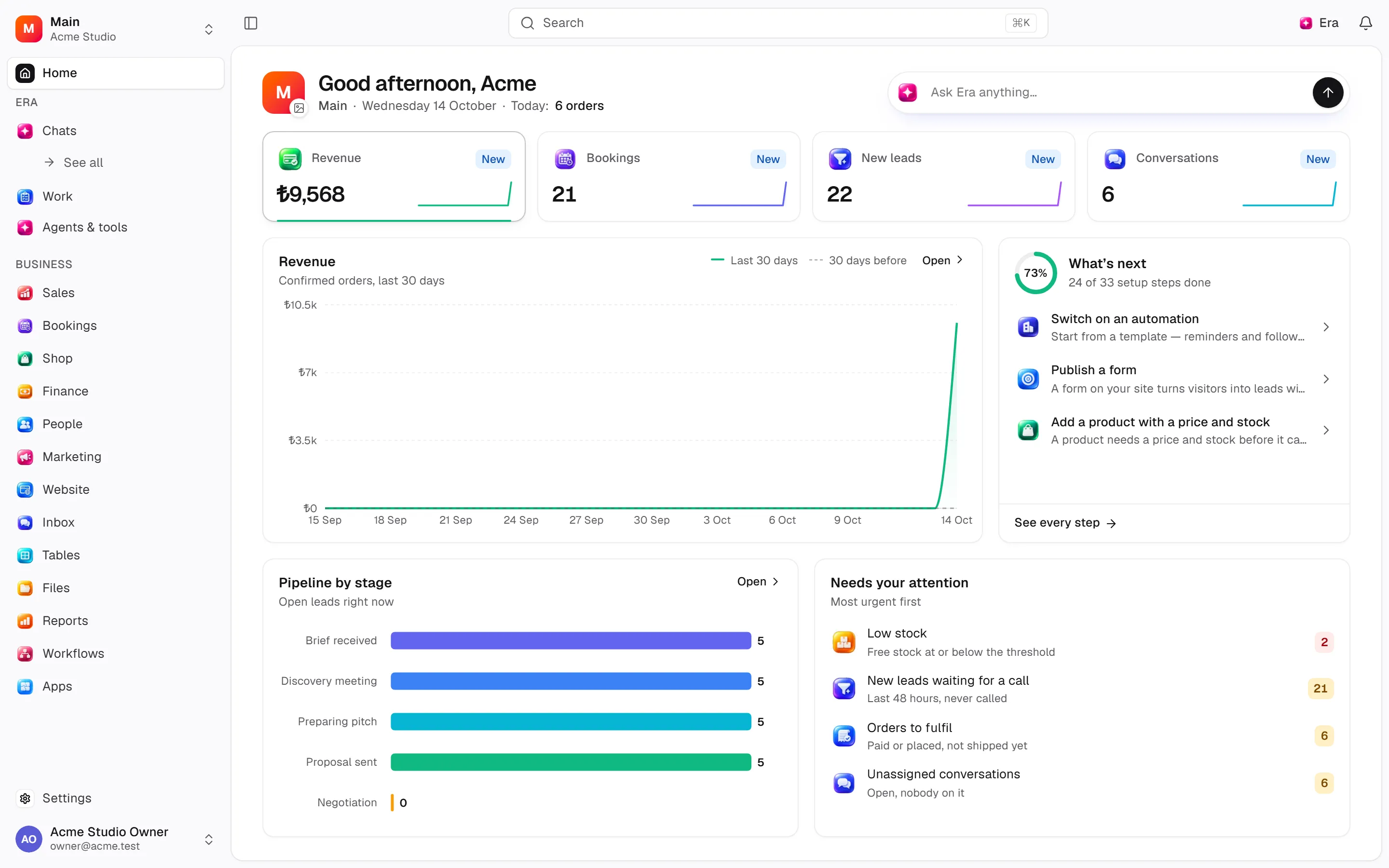
- Home — the large message box at the top and the suggestions under it. Sending opens a new chat.
- Chats — the Chats row in the sidebar's Era section (
/era). It starts a new chat; your recent chats are listed under the row. - From any page — at the bottom centre of business pages sits the Work with Era… box. Type and press Enter: Era opens in a panel on the right and the page stays where it is. Ctrl+. opens and closes the panel. See The Era pane.
- New chat — the button at the top of the left rail.
- Alt+Space — brings Era's message box forward wherever you are on the computer.
- Beside a business page — the Era button in the page's top bar, or Ctrl+. Era opens on the right and the page stays where it is.
If you just finished setup, your list already has a chat: Era's first message, with three suggestions you can start with one tap. See Set up your workspace.
A good first job
Keep it short and concrete; say what, when and in what form.
- "List this week's bookings and tell me the free slots."
- "Find the customers waiting three days for a reply and draft a short answer for each."
- "Export last month's sales to Excel."
- "Learn this: the Kadıköy branch is closed on Mondays."
Era does not guess customer, booking, order or inbox details; it reads them from the records. It only works in modules that are on and in records you can see.
The message box
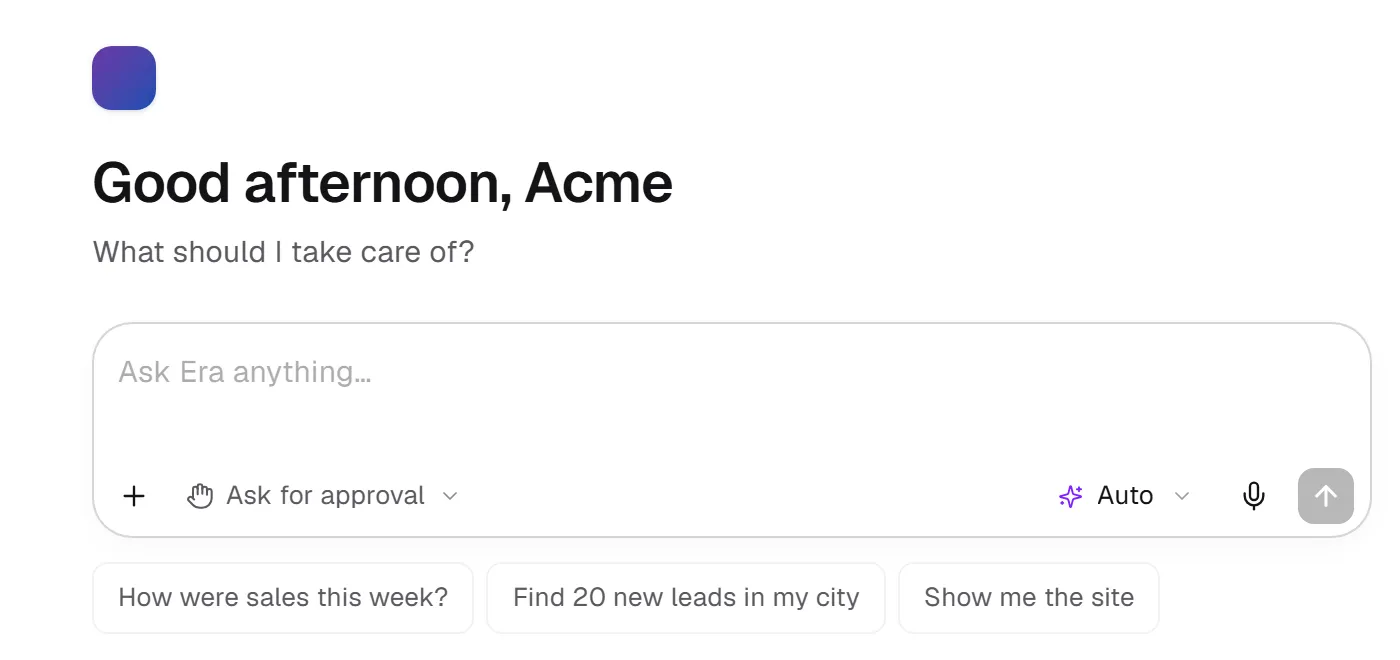
The box has the same order on the web and the desktop: + · permission switch · model picker · microphone · send.
| Part | What it does |
|---|---|
| + | Adds photos and files, adds page or record context, mentions an assistant or an app. What you add shows as small cards above the box. |
| @ | Mention an assistant or a connected app while you type. |
| / | Commands: Change provider and model, Back to Auto, Add photos & files, Add page or record context, Stop the answer, New chat. |
| Permission switch | Ask for approval: Era asks before it changes, sends or deletes anything. Full access: Era does the work without asking; money, messages to others and deleting still ask. The choice is kept per chat. |
| Model picker | The top line is the connected provider and model. Below it each subscription's tab, its models and how much it thinks. See Connect your subscription. |
| Microphone | Dictate instead of typing. |
| Send / Stop | While Era works, the button turns into stop. |
If you write a new message while Era is working, it goes into a queue and is sent when Era finishes.
While Era works
- Live steps — what Era is doing, line by line: which records it looked at, which action it ran.
- Era's screen — opens beside the chat when Era opens a site, uses a computer, makes a file or changes a record. Its tabs: Browser, File, Site, Record. On a computer screen, Let me take over gives you control. On the web, Hide Era's screen closes it.
- Files — files Era makes show as cards in the chat and are saved to Files.
- Suggestions — small chips under an answer send the next step in one click.
shots/getting-started-first-chat-workingApproving
In Ask for approval mode Era stops before it changes a record, sends a message or deletes something, and shows an approval card in the chat. The card says what it will do; you approve or decline. Sometimes Era asks a question or asks for a sign-in detail; your answer goes straight to Era.
- Every waiting approval shows as a number next to Work in the sidebar; that page lists them all.
- You can answer an approval on the web, the desktop or the phone; once someone answers, it closes everywhere.
shots/getting-started-first-chat-approvalFor which things are always asked, see Permissions.
When a limit is reached
With Auto selected in the model picker, when your subscription hits its limit Era writes a line in the chat saying it reached the limit and is carrying on with the next source, and moves on. If you picked a source yourself, it stops and says why; choose Auto and it continues with the next one.
Afterwards
- Chats don't close. Write "now export these to Excel" in the same chat the next day and Era knows what you mean.
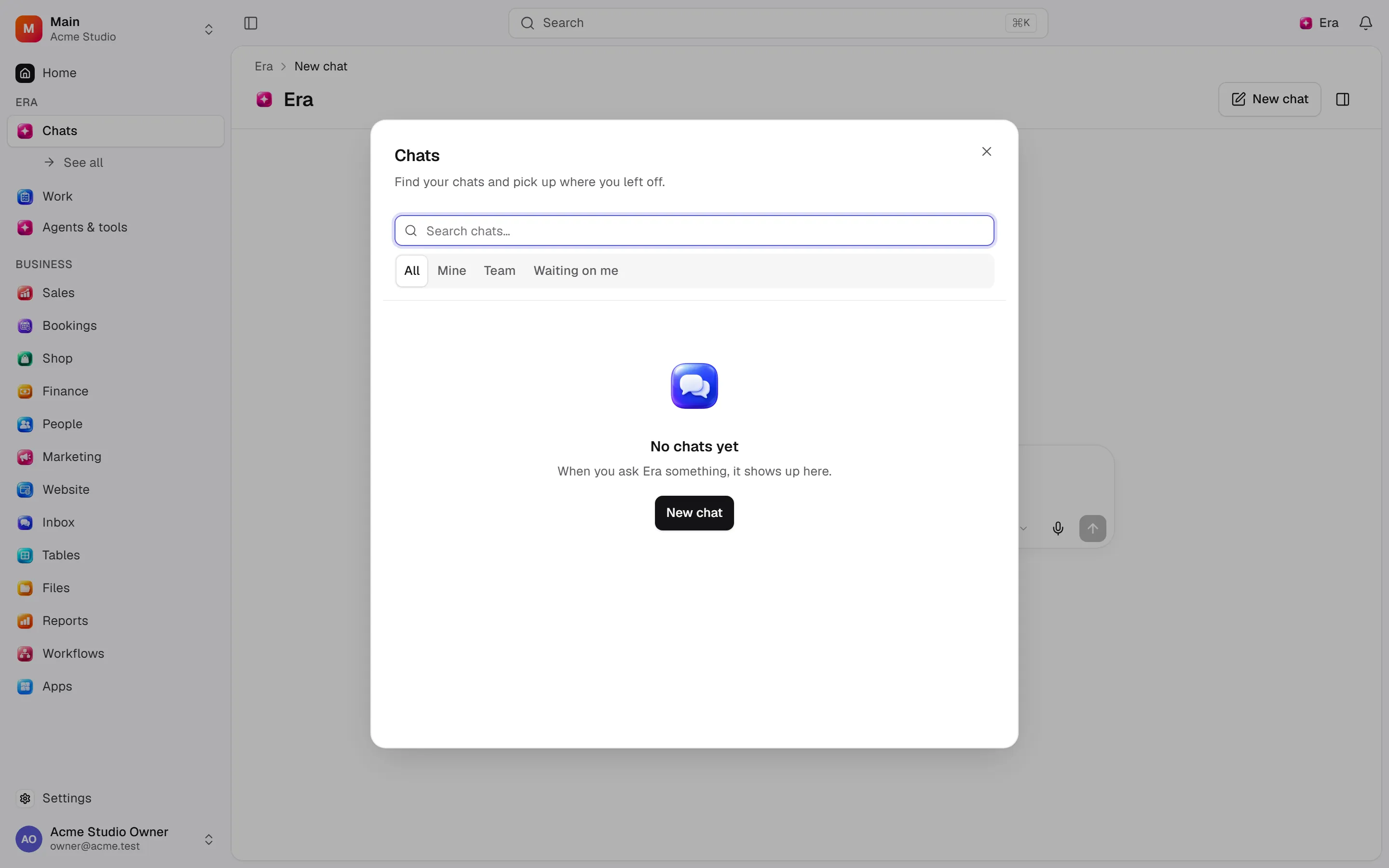
- Recent chats sit under Chats in the sidebar. See all opens the whole list with search and filters (All, Mine, Team, Waiting on me). Each chat's menu has Rename, Pin, Share and Delete.
- Sharing — chats are private until you share them. Share chat lets you choose who can open it (Only me, the workspace, or specific people), give people Can view, Can act or Can approve, and turn on a read-only link if you want.
- Web and desktop see the same chats. A chat you start on the desktop is listed on the web too.
To see and correct what Era learns as you talk, see Memory.