Computer use and AppSnap
Enable screen work, inspect its scope and monitor the outcome.
Computer use lets Era see the screen and click, type or press keys. It differs from searching local files or business records. Desktop and required OS permissions are needed; web work can also be sent to a connected desktop.
Before you start
Desktop and OS permission are required. A web setting cannot grant local OS access.
Where
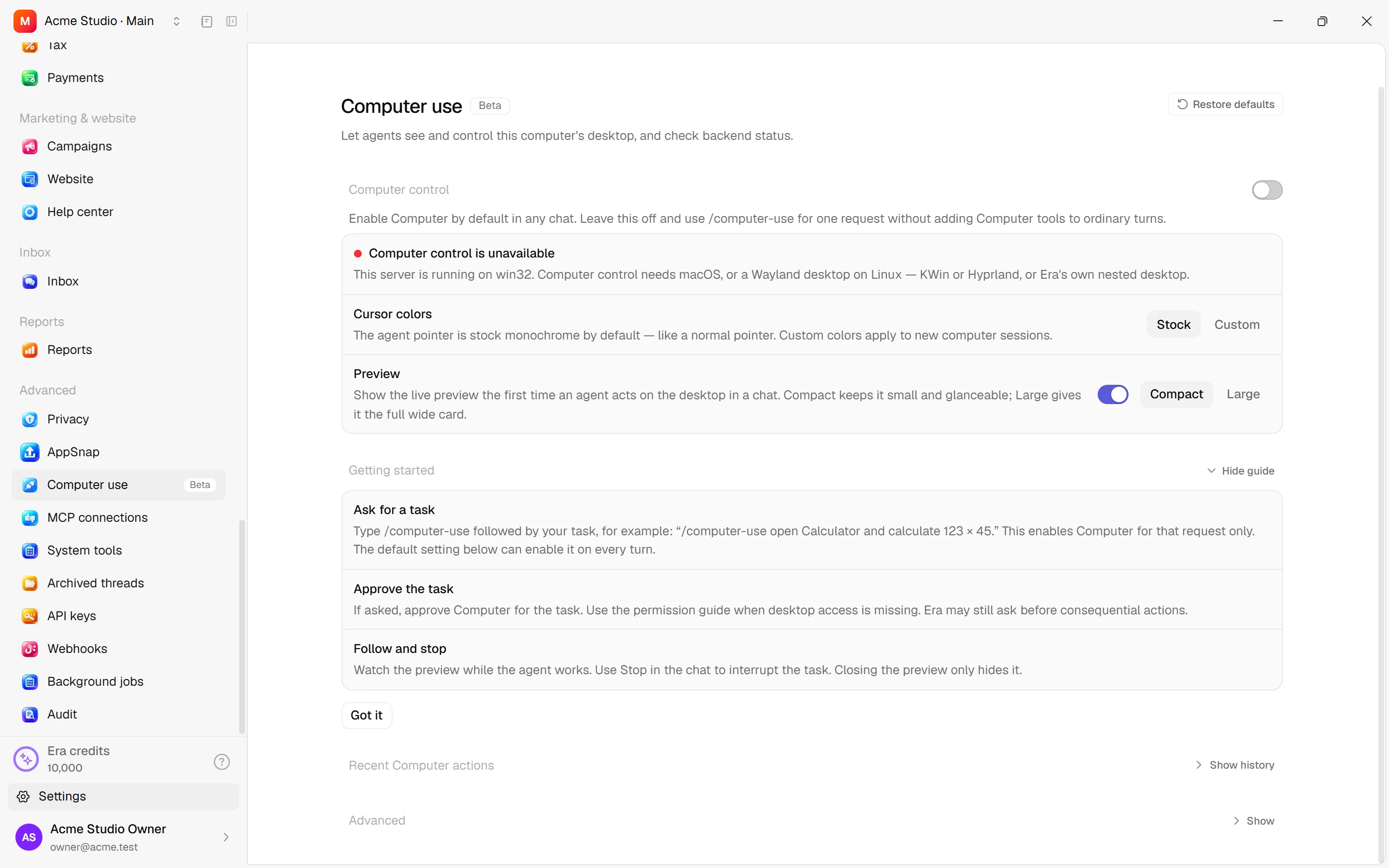
Desktop: Settings → Advanced → Computer use (Beta). Web computer preferences are at Settings → AI → Computer; the web page cannot grant local OS permissions.
Start
Keep the computer ready
Keep Era Desktop open and paired.
Check permissions
Inspect availability/missing permissions and complete offered setup steps.
Describe the task
Request a concrete job: “Read the table on screen and summarize it.”
Review scope
Review scope and decide when a computer-permission card appears.
Check the result
Inspect the preview/result; enter sensitive information yourself.
An offline computer returns device_offline; repeated requests cannot turn it on. Click coordinates refer to pixels of that screenshot.
Local options
Toggle Computer control and Let the agent use the desktop in any chat. Cursor colors choose fill/rim for new sessions. Preview chooses compact/large and automatic display on first action. Advanced shows abilities and OS permissions. Preview/color choices do not grant control access.
AppSnap is separate: enable capture, shortcut, destination chat/task and capture sound. It captures another app's frontmost window as context; it does not authorize computer control or sending customer data.
Tools and permissions
Remote pc_act supports status, screenshot, opening URL/app, reading files/screen, WhatsApp read/send, clicking, typing and keys. A local desktop engine has its own computer tools, so pc_act may not be listed there. Have people enter passwords/card details themselves: the tool description forbids typing them.
Computer permission, business role and provider permissions are separate. Stopping after a message sends does not retract it. Use Stop or the app's offered stop control; see approvals.
Try “Read only this page's headings without clicking anything” or “Prepare the file and show me; ask before sending.”
For shared domain/app/model/approval/task limits see Computer rules.
Live talk and computer selection
Use Talk live with Era in the desktop composer after connecting your own ElevenLabs key in AI settings. The key stays on the server. Turkish uses a native Turkish voice; patient turn-taking tolerates short pauses and supports interruptions. End the voice chat to release the microphone. The voice transcript is saved with the same chat and can also be read on the web.
During computer use, a blue notice names Era and says Esc stops control. It moves to a corner outside Era windows and hides when no corner is free. Consecutive known input steps can share one tool call, with safety checks on each step. The Era workflow block lets you choose a computer (auto, this PC, cloud, server) and subscription. Explicit choices fail when unavailable; server execution uses your API key rather than transferring a desktop subscription.