Era Desktop
Install the app, pair your account and prepare a local engine.
Era Desktop is the app installed on your computer. It opens business screens with the same account and adds local AI engines, files, terminals and authorized computer use.
Before you start
Era and provider sign-in are separate. Local work requested on the web needs an online computer.
Local AI engines and subscriptions
Steps and focused answers.
Desktop questions
Steps and focused answers.
Install and sign in
Download
Download the available Windows installer from the download page. The server URL is /api/downloads/desktop/latest?os=win; a missing Mac artifact returns “coming soon”. Platform support in code does not mean an installer is published for every platform.
Install
Run the installer and open Era.
Pair your Era account
Choose Sign in with Era. Complete browser device authorization using the displayed code; use QR where offered.
Choose workspace and source
Check organization/workspace. Connect provider subscriptions separately in Settings → AI → My subscriptions.
Request a fresh code after expiry. Signing into Era does not automatically sign you into Claude or Codex.
Layout
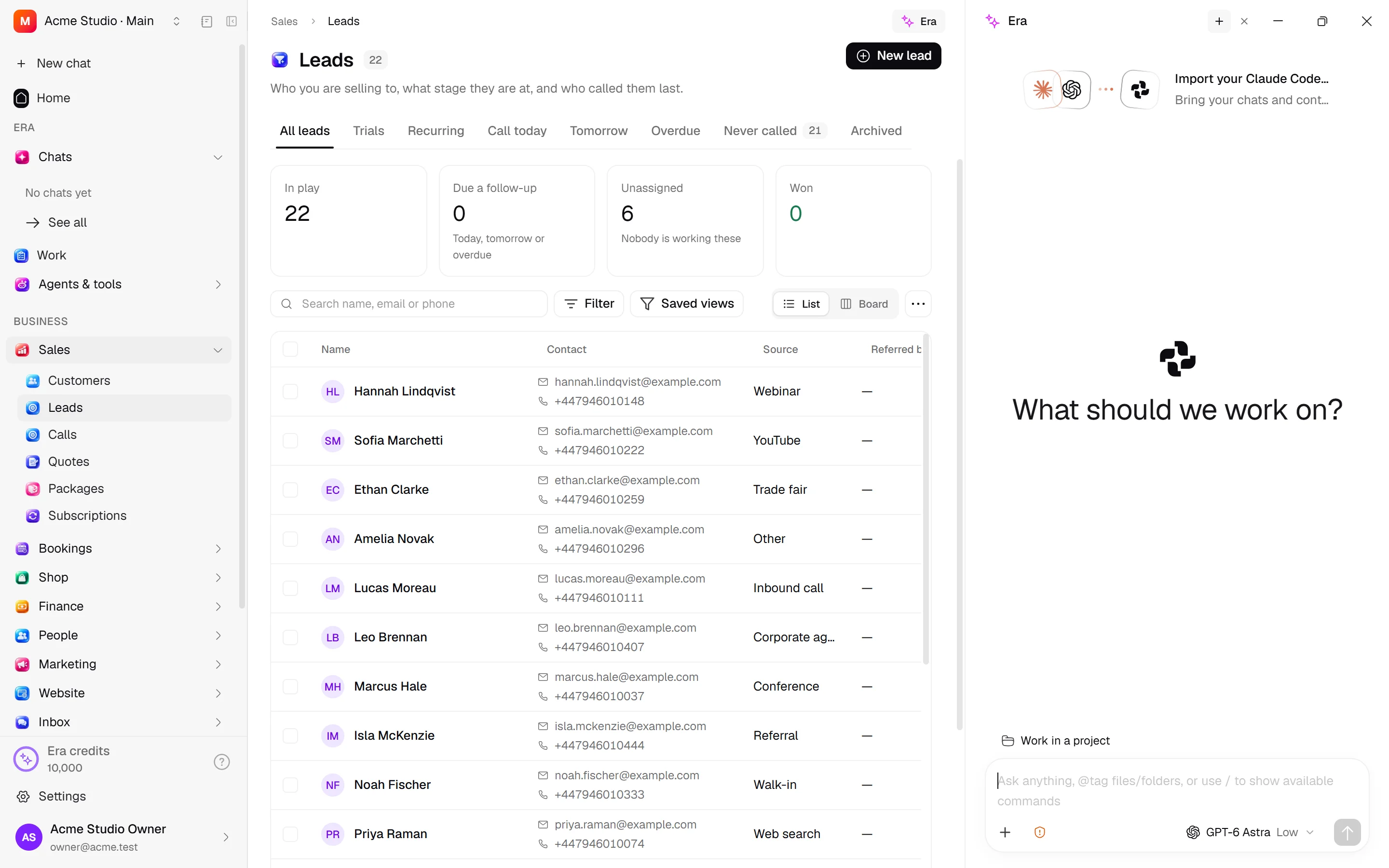
The left sidebar contains workspace selection, new chat, recent chats and business sections. Settings is one row at the bottom; while Settings is open, Back to Era at the top returns to the page you left. The center shows the active chat/page; the right Era pane opens with Era or Ctrl + .. Ask Era on selected rows keeps the page open.
The workspace selector (top left) shows the workspace's logo, name and organization. New workspace and Open my personal space open the web app: the desktop never sets up workspaces, onboarding or blueprints.
Tabs and side-by-side work
Open chats and business pages (Orders, Invoices, Products…) share one tab strip at the top, and the tabs come back after a restart. A business row in the sidebar opens or focuses that section's tab. Only pages your role can see become tabs.
- Drag a page tab onto the right half of a chat to open it in the chat's right panel, next to the Terminal, browser and files tabs: the chat in the middle, Orders and Products on the right.
- Drop a page tab on the right half of another business page to see the two side by side.
- When Era changes data from a chat (for example, adds products), open pages update without a reload.
- Files dropped on a business page (invoices, say) upload to Files › Era and go to Era. You can also drop files on the chat.
- The workflow builder opens as a tab or a right-panel pane, and Era knows which workflow is open.
- A chat with one of your agents runs on the desktop's own chat engine: the agent's New chat opens a chat with that agent's instructions and skills.
The web has the same tab layout: open pages become tabs above the page, and dragging one onto the right half opens it beside the page.
Many web screens have native desktop counterparts; do not assume every newly added web behavior has already reached desktop. Open its web route when a detail is unavailable locally.
Keep the computer available
Web/phone work can route to an eligible paired computer. Local subscription/screen tasks require an online computer and ready engine. Closing a window can differ from quitting: inspect the tray connection/stop state. Sign out of this computer removes pairing; Quit closes the app. You can also remove devices under My computers at /settings/ai/subscriptions on web.
Compared with web
| Job | Web | Desktop |
|---|---|---|
| Business records | Account and role access | Same account and role access |
| Local AI engine | Routes to eligible computer | Direct local engine |
| Local files/terminal | Via connected engine/job | Work folder and terminal |
| Screen control | Possible via connected desktop | Local permission |
| Machine appearance/shortcuts | Limited | Local settings |
Update behavior depends on version/channel. Compare installer and app versions in Settings → Advanced → About. This guide does not live-verify published installers or update services.
Try “Read my local file and save the output to Era Files.” See local engines, computer use and era command.