Turning modules on and off
Enable products, inspect dependencies and check workspace access.
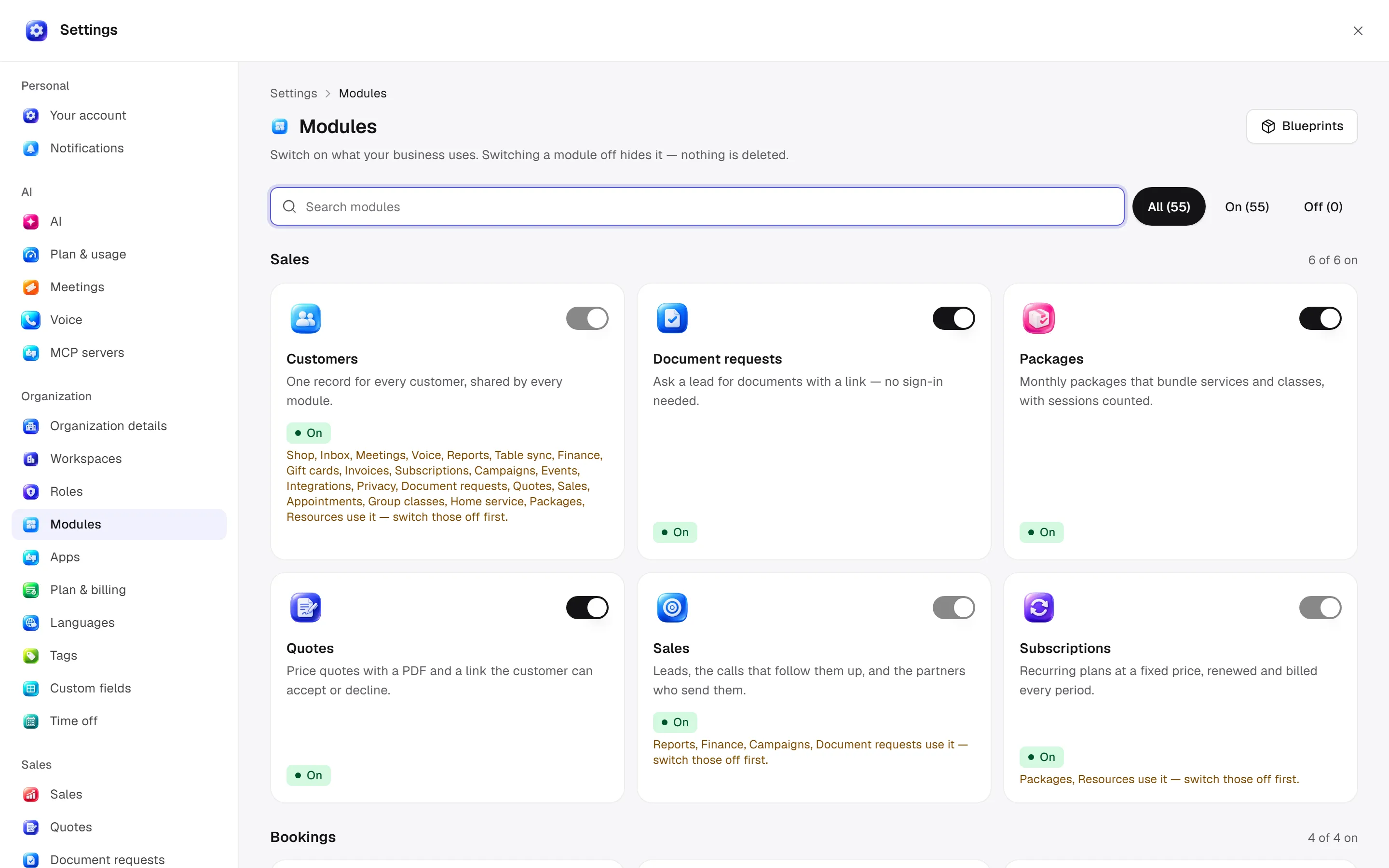
A module is a product area your business chooses to use. Web: Settings → Organization → Modules. Desktop: Settings → Organization → Modules.
Before you start
Disabling a module preserves records. An enabled module still requires the person’s read permission.
Module screen
Use search and Show to find enabled/disabled modules. Details include What it adds / Features / Works with / Who can use it. Core modules marked Always on cannot be switched off like ordinary product modules.
Switch on enables the module in the workspace; eligible role grants and starter dictionaries are prepared in the same operation. Switch off asks for confirmation, removes the module from everyone's sidebar and stops Era using it. Records are preserved. Re-enabling differs from creating a new workspace.
Features and dependencies
Some products have separate feature switches; a menu entry does not mean every subfeature is enabled. A module reading another module's records depends on it: inspect the displayed relationship information. An enabled module does not imply every role has access; check roles.
Permissions and automation
Workspace module-management permission is required. Disabled-module routes are unavailable; enabled but unauthorized pages can show access denied. Review workflows and agents using the module's events/actions. Ask Era “What work would be affected if this module were turned off? Do not turn it off yet.” See data model.
Practical start
Choose a module
Find the product with enabled/disabled filters and check the workspace.
Inspect effects
Read What it adds, Works with and Who can use it. Before disabling, inspect workflows using it.
Check access
After enabling, inspect the role matrix. If a page is unavailable, check that person’s read access.