Chats and every composer control
Use attachments, model selection, queues and approval controls.
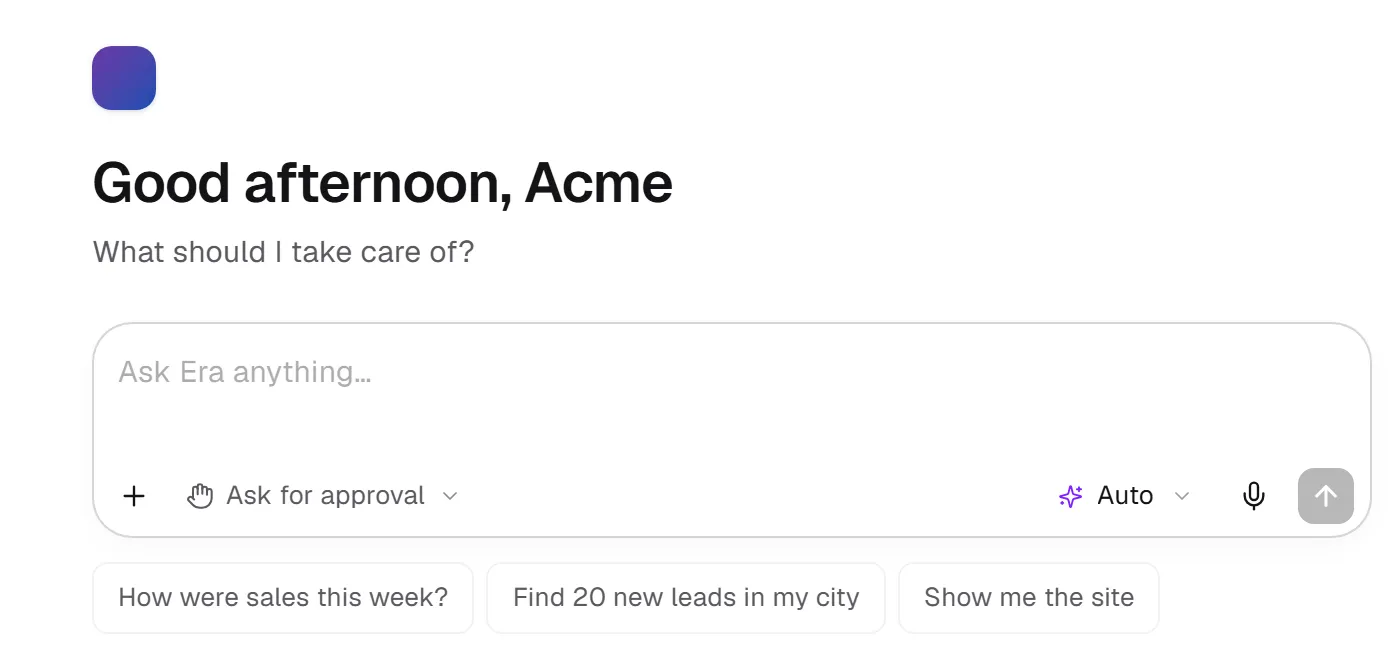
A chat is where you carry out a job with Era. Web: Era → Chat. Desktop: New chat and recent chats. The web uses the same composer in the Era pane, agent chats and builders; controls such as the queue and permission mode appear where supported.
Before you start
Stop does not undo a completed change. Inspect the actual outcome before another write.
The Era pane beside your page
Steps and focused answers.
Using Era questions
Steps and focused answers.
Composer controls
| Control | What it does |
|---|---|
| + | Opens photos/files, page or record context, agent/app mentions and app options. |
| Attachment | Adds a reference card above the prompt. Remove it before sending if needed, and explain how to use it. |
| / | Opens commands. Web options include model, Auto, file, context, stop and new chat when supported. Choose the translated command from the menu. |
| @ | Finds an agent or app and adds a reference chip. Typing its name as ordinary text is different. |
| Permission mode | Ask for approval or Full access; approval rules still apply. |
| Model/source | your connected provider and model, followed by subscriptions and models. |
| Search, star | Find a model or add it to favorites; source tabs narrow the list. |
| Effort | Selects the engine's supported reasoning effort. Higher effort can take longer and consume more quota. Ladders differ by engine. |
| Microphone | Transcribes your speech into the prompt. Review before sending. It does not call a customer. |
| Send | Starts a request; enabled when there is text or an attachment. |
| Stop | Stops the ongoing answer; it does not reverse completed changes. |
| Queue | Holds the next message above the composer while Era answers; sends it in order after the answer ends. |
Manage queued messages
Remove a queued message or choose Send now to steer the running answer. File and agent-reference messages may behave differently from plain text steering. Inspect remaining queued work after stopping. Stop is not an undo operation.
Choose a model
The Auto trigger simply says Auto; inspect connection/runtime information in subscription settings or the chat source step. Missing API keys require a connection before use. A saved model name is displayed as that model. The web picker supports Ctrl + 1–9 quick choices. See source and quota behavior.
Write a useful request
“Group these selected leads by their last call result; do not change them yet.” Then: “Add a follow-up task for tomorrow to the first group.” Mentioning an app does not grant new access; its connection and your role still matter.
What you can do from a chat
Whichever subscription you use (Claude, Codex, Antigravity…), Era gives the same tools:
| Request | What Era does |
|---|---|
| “What do I have?” | Reads modules on and off, automations and their recent runs, connected apps, connected keys (presence only), members and the brain at a glance. |
| “Connect Instagram” | Puts a Connect card in the chat: the sign-in or Era’s own key form opens; keys are never typed into the chat. Say “done” and it checks the connection. |
| “Send this from Gmail”, “do this in iyzico” | Runs the connected app’s action; sending, paying and deleting wait for approval. It knows the 250+ apps of the app market and can suggest one. |
| “Make 3 images for this product” | Makes images, video, voice-over or music with the business’s own fal.ai, Replicate, ElevenLabs… key; results land in Creative Studio and Files. |
| “What did we discuss last month?” | Searches past chats; shows relationship paths in the brain, record history and decision chains. |
Before saying it cannot do something, Era searches one place: every action, workflow template, blueprint, theme and app. MCP tools.
Surface differences and settings
Desktop also supports local engines' commands and chat behavior; do not assume every web slash command works identically in every engine. Settings → Personal → Chat behavior controls follow-ups, Enter during dictation and safety preferences on desktop. Web working preferences live at /settings/ai. See desktop settings.
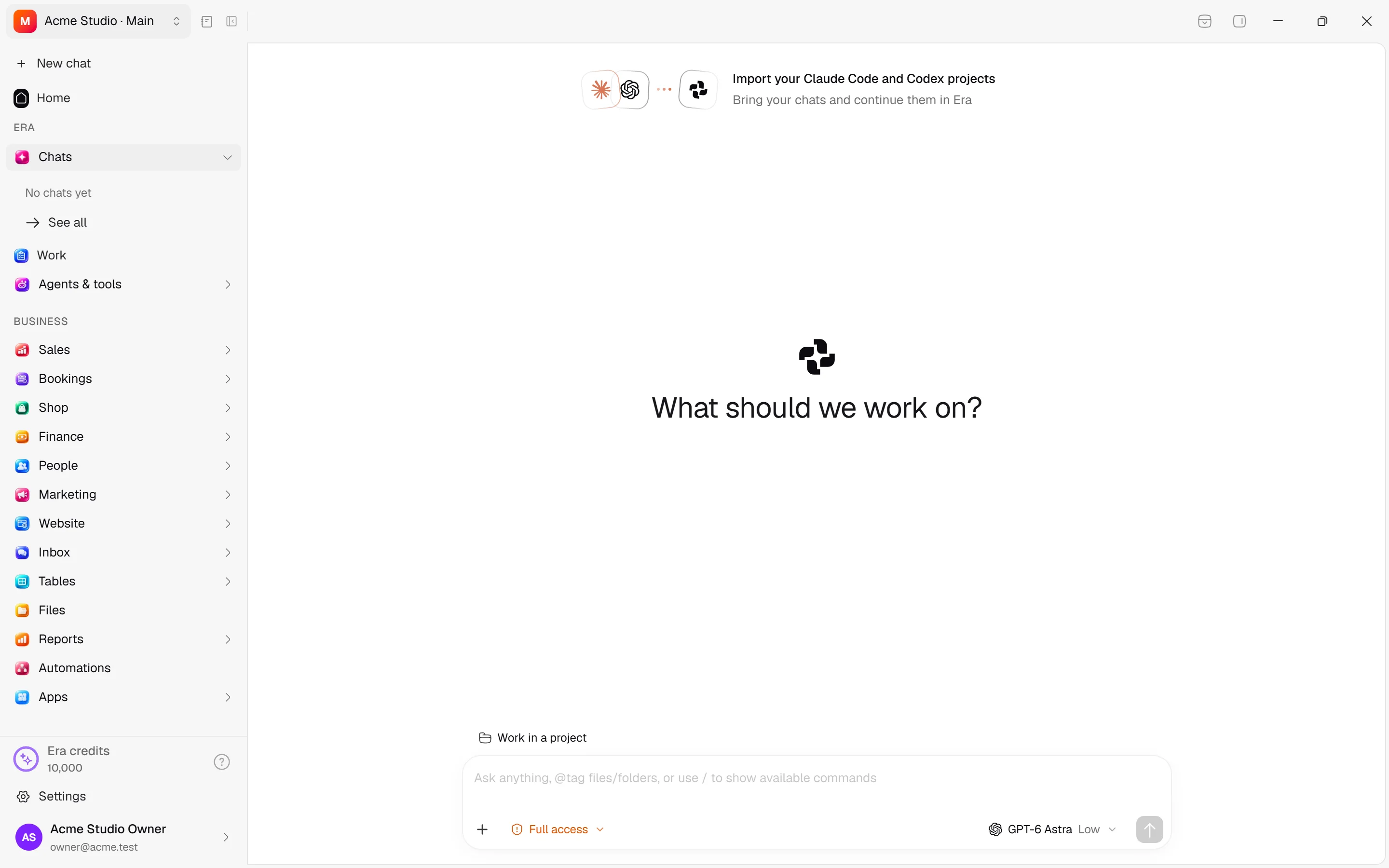
See all opens chat search with All / Mine / Team / Waiting filters and row actions; five newest chats appear in the sidebar. Desktop context-window rings and Auto-compact are local engine features without exact web equivalents.