Sign in to Era Desktop
Download Era Desktop, install it and connect this computer to your Era account.
Era Desktop is Era's Windows app. It shows the same account, the same chats and the same business pages as the web; on top of that it can use the Claude Code, Codex and Antigravity you are signed in to on this computer, and, if you let it, the computer itself. For that you connect the computer to your account once.
An Era account first
The desktop app has no setup wizard: the business, AI and apps steps happen on the web. If you have no account yet, first open an account and set up your workspace.
Download and install
Download the installer
On getera.io/en/download press Download for Windows. The page shows the version and file size. Windows 10 and 11, 64-bit. The same link is on the web's welcome screen (Download Era for your computer) and in the subscription settings.
shots/getting-started-desktop-downloadInstall
Open the file you downloaded. Windows may show an "unknown publisher" warning: until our code-signing certificate arrives, SmartScreen asks for More info → Run anyway. The file comes straight from Era's server. A signed build is coming.
Mac
There is no Mac version yet; it will be on the download page once it is signed. Until then, use app.getera.io on a Mac.
Connect the computer to your account
On first launch you see a single window: Welcome to Era, with "Sign in once and Era works with you from anywhere on this computer." under it.
Sign in with Era
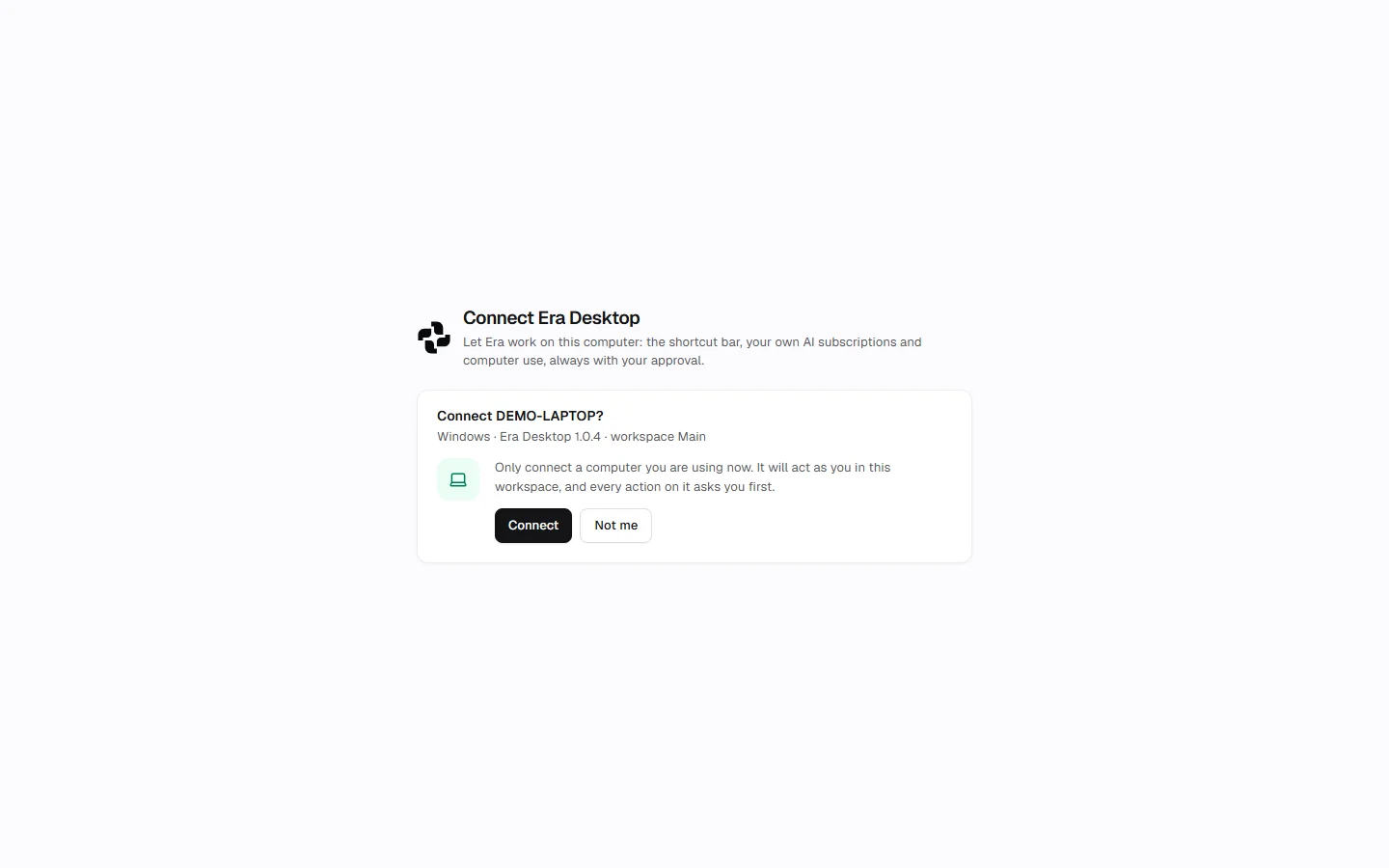
Press Sign in with Era. The window shows a code and a QR code, and at the same time an approval page opens in Era's own window.
shots/getting-started-desktop-signinApprove in the window that opens
The approval page is titled Connect Era Desktop. If you are not signed in to your Era account there, sign in first. The page asks "Connect [computer name]?" and shows the platform, the Era Desktop version and the workspace under it. Check that the code matches the one in the sign-in window, then press Connect. If this is not your computer, press Not me; nothing is shared.
The code is valid for 10 minutes. If it runs out, press Sign in with Era again in the sign-in window.
Era opens
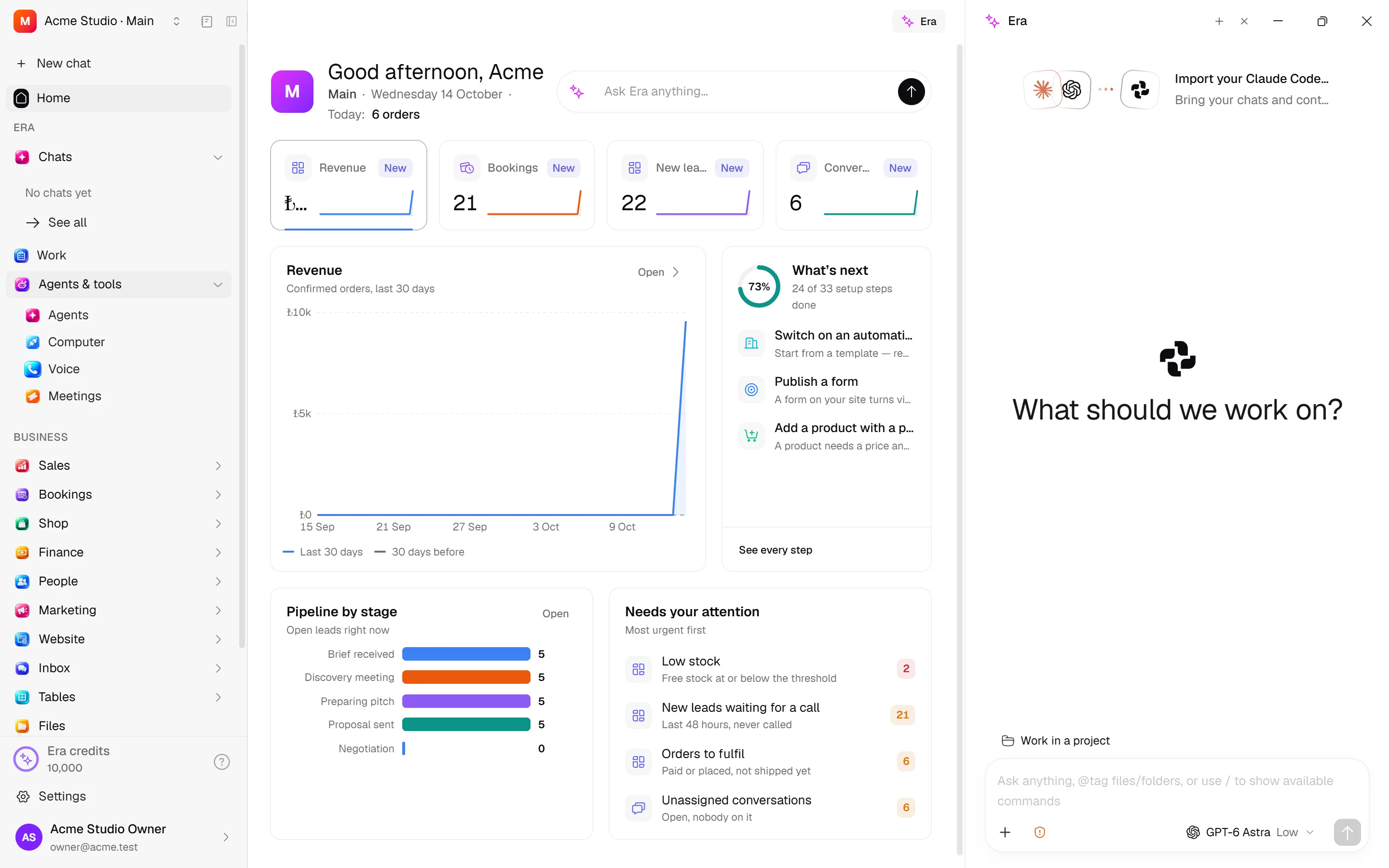
The moment you approve, the sign-in window closes and Era opens. A connected computer never sees that window again; every time you open Era you go straight into your workspace.
Only connect your own computer
A connected computer acts as you in this workspace. Only connect a computer you are using now.
After you connect
- Left rail: the workspace switcher at the top; then Chats, Work, Agents & tools and the Business sections. The same places as the web.
- Alt+Space: brings Era's message box forward wherever you are on the computer.
- Era beside a page: the Era button in a business page's top bar, or Ctrl+. See The Era pane.
- Subscriptions: Era finds the Claude Code, Codex or Antigravity you are signed in to on this computer. To connect them: Settings → AI → Abonelikler ve hesaplar (subscriptions and accounts). See Connect your subscription.
- Visible on the web: this computer now shows up by name when you choose where a subscription should run in the web settings.
Signing out and connecting again
- Sign out: open the account row at the bottom of the left rail and press the red Sign out. Era removes this computer's connection and opens the sign-in window again.
- Connect again: Connect to Era… in the menu of Era's icon in the system tray opens the sign-in window.