Open an account
How to create your Era account, verify your email and what to pick on the first screen.
Nothing to install: Era works in the browser the moment your account exists. The account is only your sign-in; you set up your business on the next step by typing its name. To use Era on your computer too, sign in to Era Desktop once the account is open.
Sign up
Open the sign-up page
Go to app.getera.io/signup. The Create an account link on the sign-in page brings you here too. The page says "Free to start. You'll name your business on the next step."
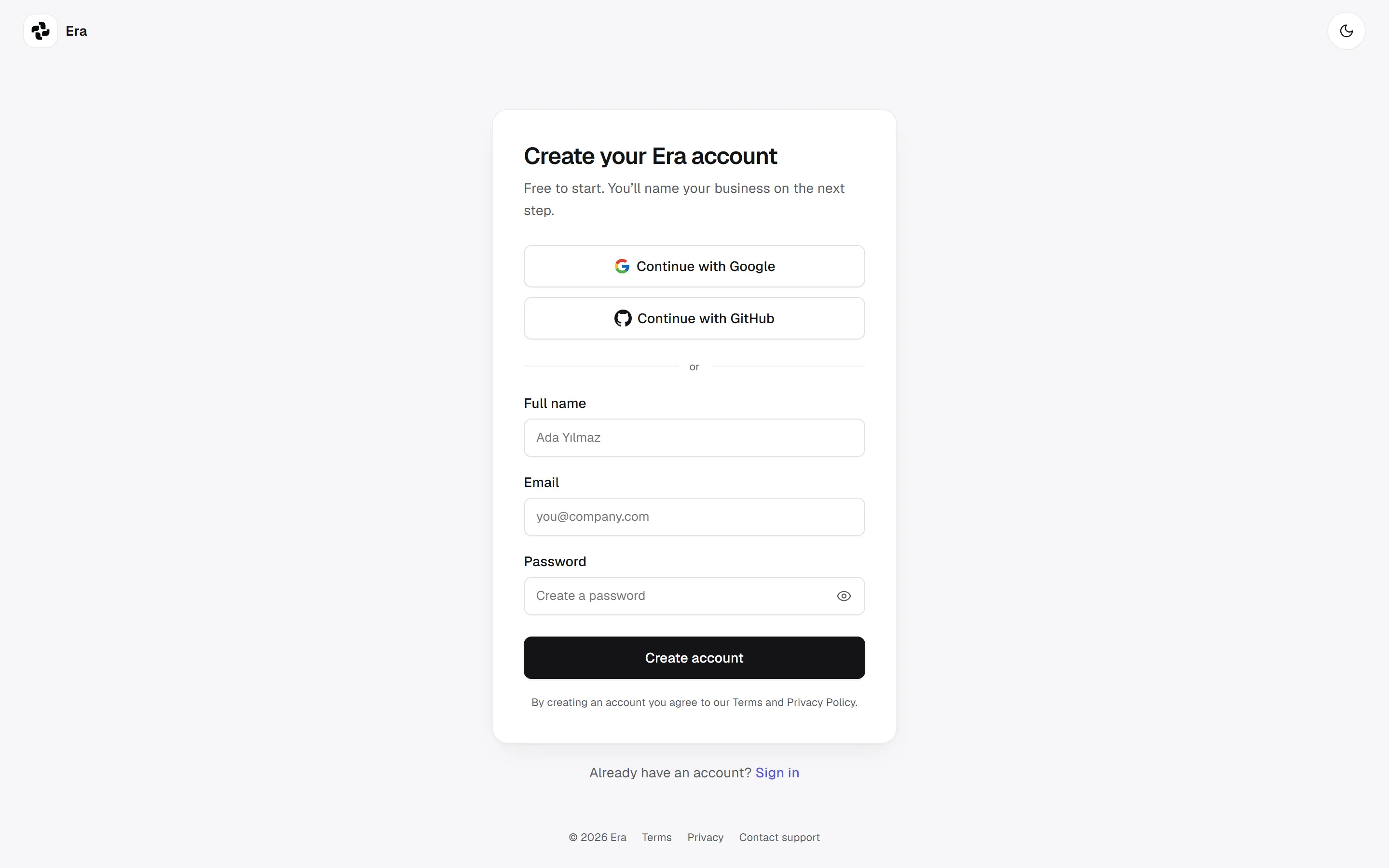
Fill in your details
- Full name — at least two letters.
- Email — the address you will sign in with.
- Password — three rules appear under it as you type and turn green when met: 8+ characters, a letter, a number.
Then press Create account. If an account already exists for this email, Era says so and suggests signing in.
Or continue in one click
When this Era has them switched on, Continue with Google and Continue with GitHub appear above the form. Continue with one and you set no password; you sign in with that account.
Verify your email (when it is on)
When email verification is on, Era sends a 6-digit code to your address and opens Verify your email. The code is valid for 15 minutes. Type it and press Verify email. No code? Check your spam folder; after a few seconds a send a new code link appears. Typed the wrong address? Use a different email takes you back.
shots/getting-started-account-verifyWhat should Era help you with?
Once your account is open, Era greets you by name and asks one question: What should Era help you with? There are four cards:
| Card | What happens |
|---|---|
| My business | Bookings, customers, sales, shop and inbox — set up for your kind of business. The next screen asks for your business's name. |
| Create content | Photos, videos, trends and posts. A personal space opens right away, no form. |
| Personal tasks | Research, plans, documents and everyday jobs. A personal space opens right away. |
| Everything | Your business and your own work, side by side in one Era. You are asked for your business's name. |
shots/getting-started-account-welcomePick My business or Everything and the next screen asks What is your business called? Type the name your customers know (e.g. "Ayşe Kuaför"); it goes on your website and your messages, and you can change it later. Continue takes you into setup — the rest is on Set up your workspace.
If you change your mind later
Started with a personal space? You can set up your business later: open the workspace switcher at the top of the sidebar and choose Set up my business. It works the other way too: Open my personal space. See Set up your workspace.
Under the same screen there is a line about the desktop: "Working on a computer? Era also runs on it and uses the Claude, ChatGPT or Antigravity you already pay for." The Download Era for your computer link next to it downloads the Windows installer.
If you came from the box on getera.io
The getera.io home page and the industry pages have a "Describe your business" box. The sentence you type there (e.g. "I run a hair salon in Kadıköy") is carried to sign-up, and:
- setup starts its search for your kind of business with that sentence and shows the closest match selected;
- if you came from an industry page, that kind of business opens directly;
- the sentence is kept as your business's description, which Era reads when it gets to know your business.
If you were invited
If a teammate invited you, open the link in your email. Without an account, the sign-up page says "Create your account, then accept the invitation"; once you sign up, Era takes you to the workspace that invited you — it does not make you set up a second business. With an account, just Sign in. For the other side of an invitation, see Members.
Sign in
app.getera.io/login — on Sign in to Era, type your email and password and press Sign in. If you signed up with Google or GitHub, use the same button. If your company uses single sign-on, a Sign in with SSO button appears.
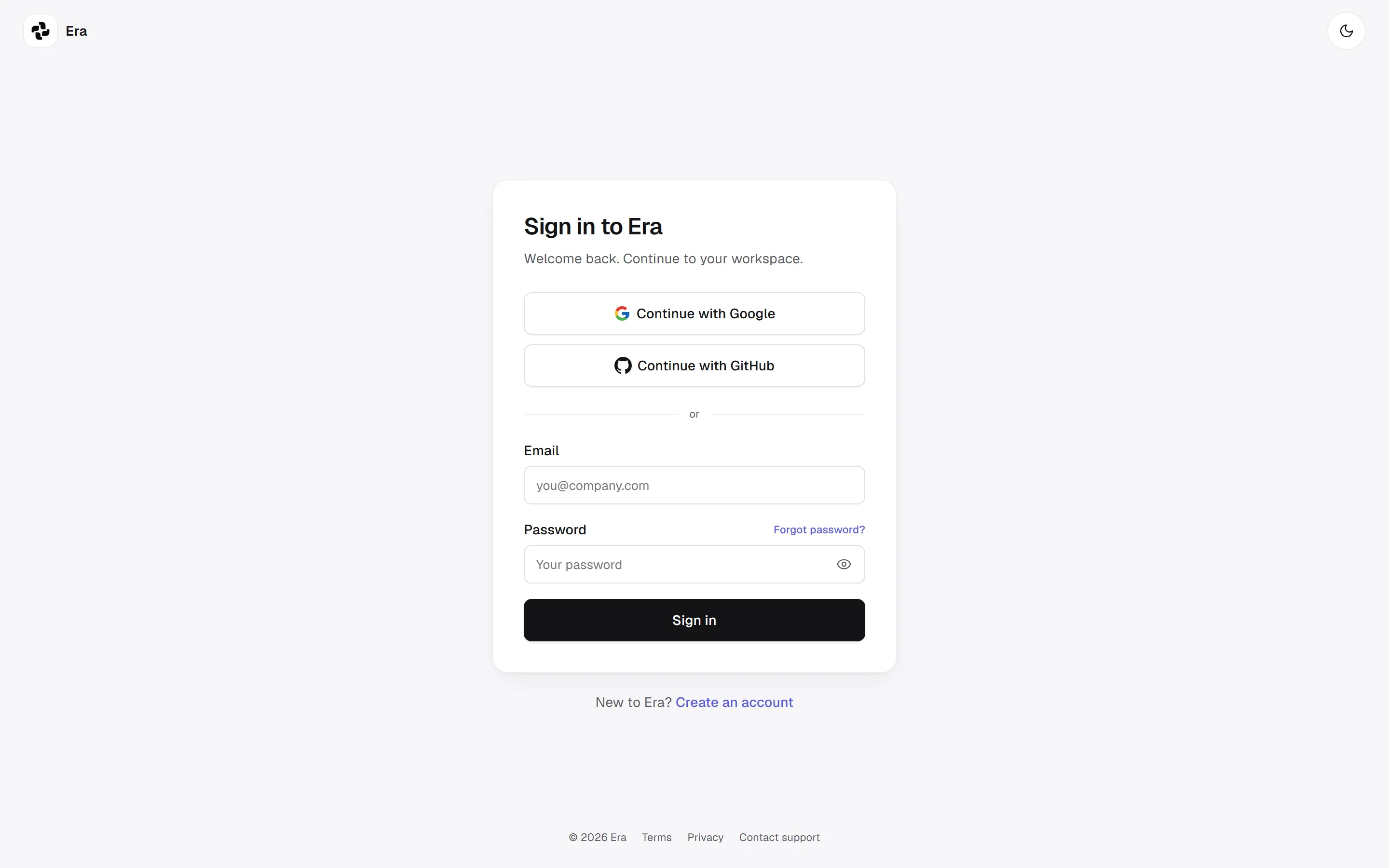
Forgot your password
Ask for a reset link
On the sign-in screen press Forgot password?, type your account's email and press Send reset link.
Choose a new password
Open the link in the email and type a new password. Era brings you back to sign in with "Your password was changed. Sign in with the new one."