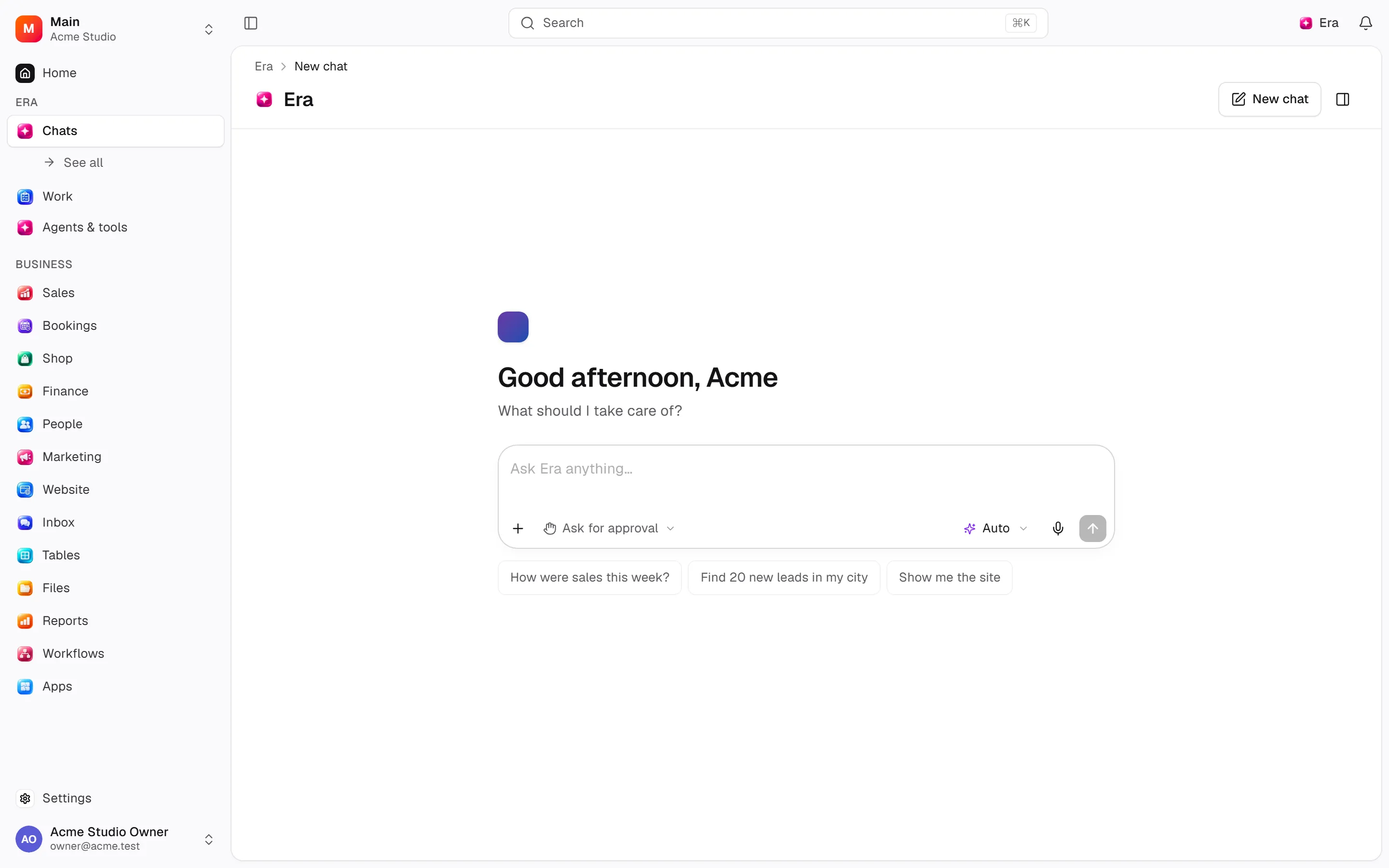
Working with Era
Read your business, prepare work and track outcomes in one chat.
Era is your assistant for reading the business, preparing work and carrying out operations you may perform. Sales teams follow customers, finance prepares documents and managers inspect the business through the same chat.
Before you start
Era acts with your role in the active workspace. Check workspace and source before starting.
Chats and every composer control
Steps and focused answers.
Using Era questions
Steps and focused answers.
Where to find it
Web: Era → New chat, Era chat. Desktop: New chat in the left sidebar, or Era above a business page. When your computer is online its signed-in subscription can run work; the picker shows the actual source.
Start a job
Workspace
Check your workspace: Era acts with your permissions there.
Outcome
Describe the outcome: “Summarize this week's new leads in a table with customer, status and next step.”
Context
Attach a file or select page rows and choose Ask Era.
Decision
Review action cards and approve or decline requests.
Result
Check the result, file card or opened record. For multiple writes, completed, failed and skipped records are reported separately.
What it can do
Find, count, create and update customers and leads; find free booking times; prepare draft orders, invoices and quotes; draft messages, then send or issue documents when authorized. Import files into tables, export a whole data source, edit a website draft and publish with approval. Search memory, explain relationships, propose methods and report work status. See plain-language tools and full schemas and their terminal equivalents.
Try: “Compare today's revenue and orders with yesterday.” “Which times are free for this service tomorrow?” “Create a table and dashboard from this file.” “Draft a reply to this customer and show it before sending.”
Settings, permissions and automation
Settings → AI → Working preferences (web) controls the model, 1–40 tool calls per answer, confirmation settings and connected-source preferences. Sources determine who pays; permissions determine what Era may do. Agents run on events or schedules; workflows use declared events and steps.
Limits
Era uses records you may access in enabled modules. External sign-ins, computer availability and provider quotas affect progress. A bulk operation can partially succeed; check completed rows before repeating it. Save local output to Era Files to access it across devices.