Set up your workspace
The first setup step by step — your kind of business, a few details, AI, apps and Era's first message; plus what a workspace is and how to switch between them.
The moment you type your business's name, Era opens a workspace for you and starts setup. Setup has five places: Your business, AI, Apps, Era and Ready. Every step can be skipped; your progress is saved and looks the same on your phone and your computer.
shots/getting-started-workspace-railWho sets up
The workspace's owner or a manager runs setup. Anyone else who opens /onboarding sees "Setting up is for the workspace owner".
1. Your business
This part is three screens: name, kind, details.
What is your business called? (Your business · 1 of 3)
The name you typed when you opened your account comes here. Era names your address and your workspace after it; if the name is taken, it adds a short tail to the address. See Open an account.
What does it do? (Your business · 2 of 3)
Pick the closest of 144 kinds of business: hair salon, dental clinic, pilates studio, accounting firm, clothing boutique and many more. The search box looks at Turkish and English names. If you came from getera.io with a sentence, the closest kind is already selected.
Era sets up your services, prices, website and assistants for the kind you pick. You can change all of it later. Not ready to choose? Press Set up later.
shots/getting-started-workspace-sectorA few details (Your business · 3 of 3)
"Answer what you like — every question already has a sensible answer." The screen has:
- Where are you? — city and district (e.g. "Istanbul, Kadıköy"). Used for your website, your map pin and the times Era writes in.
- A few yes/no questions for your kind of business.
- Start with sample data — realistic customers and bookings so you can look around. One click removes them.
- What Era sets up for you — how many services with prices, products, assistants and automations it will add, and a website with your name.
Then press Set up [name]. It takes a few seconds; keep the page open. The lines "Switching on what your business needs", "Adding your services, prices and assistants" and "Drawing your automations and your website" pass by in turn.
shots/getting-started-workspace-details2. AI
Which AI should Era think with? Three choices, one under the other:
| Choice | What it means |
|---|---|
| Your own subscription (Recommended) | Already paying for Claude, ChatGPT or Antigravity? Era uses that — no extra cost. The subscriptions you are signed in to on a computer with Era Desktop show up here by themselves. |
| You have an API key | A key from an AI company. You pay that company for what you use. Added with Add a key. |
Connect a supported subscription or your own API key before starting AI work. See sources.
3. Apps
Connect your first apps — two or three apps that help your kind of business most are suggested (e.g. a marketplace for retail, WhatsApp for a service business). Each Connect button opens that app on the apps page; See all apps shows the whole list. See Apps and integrations.
4. Era
Era has something to say — Era's first message: what it set up, what it can do now, and three suggestions you can start with one tap. This message is a real chat: it sits at the top of your chat list and waits for you on your phone and your computer too. It is written from your setup, so it spends no AI.
5. Ready
"All set." Steps you put off are listed here with a Do it now button. Start with Era opens your first chat; Go to Home takes you to Home.
shots/getting-started-workspace-readySkipping and finishing later
- Every step has Skip for now.
- Finish later at the top leaves setup. Your progress is kept; Home shows a "finish setup" card where you left off.
- Use the card or the rail to go straight to one step.
What a workspace is
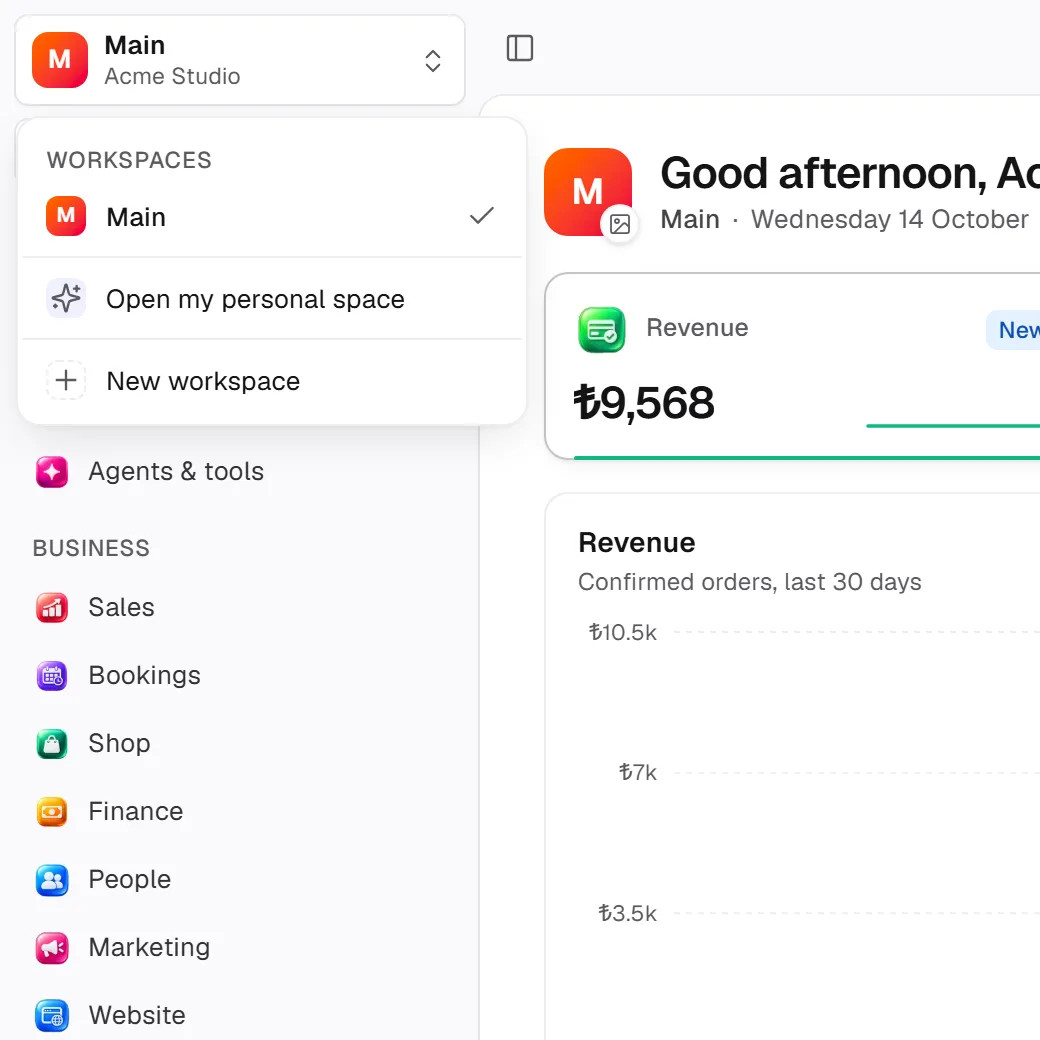
A workspace is where your business's data, team and settings live. Each has its own members, roles and data; nothing crosses between them. Workspaces belong to an organization — the organization only shows as a subtitle in the switcher and as a page in Settings.
There are two kinds of workspace:
- Business — customers, sales, bookings, shop, team.
- Personal — yours alone; content, research, personal tasks. It carries a small "Personal" label in the switcher.
Switching between workspaces
The top row of the sidebar is the workspace switcher (on Era Desktop, the top row of the left rail). Open it to see every workspace you belong to, grouped by organization; pick one to switch. If you don't have one yet, Open my personal space or Set up my business appears at the bottom; with the right permission, New workspace too.
Workspace settings
Settings → Organization → Workspaces (/settings/workspaces). Here you find:
- Inside [workspace] — everything this workspace holds, and where each one is managed: members, roles, modules that are on, connected apps, subscriptions and API keys, computers, assistants, automations, knowledge bases.
- The list of workspaces: name, description, members, currency and time zone (left empty, they come from the organization).
- New workspace, edit and delete. An organization must keep at least one workspace.
The organization's name, logo and ownership are at Settings → Organization → Organization (/settings/organization).