Files and upload links
Teams manage files/folders/attachments and collect uploads through expiring links.
Teams manage files/folders/attachments and collect uploads through expiring links.
Where to find it
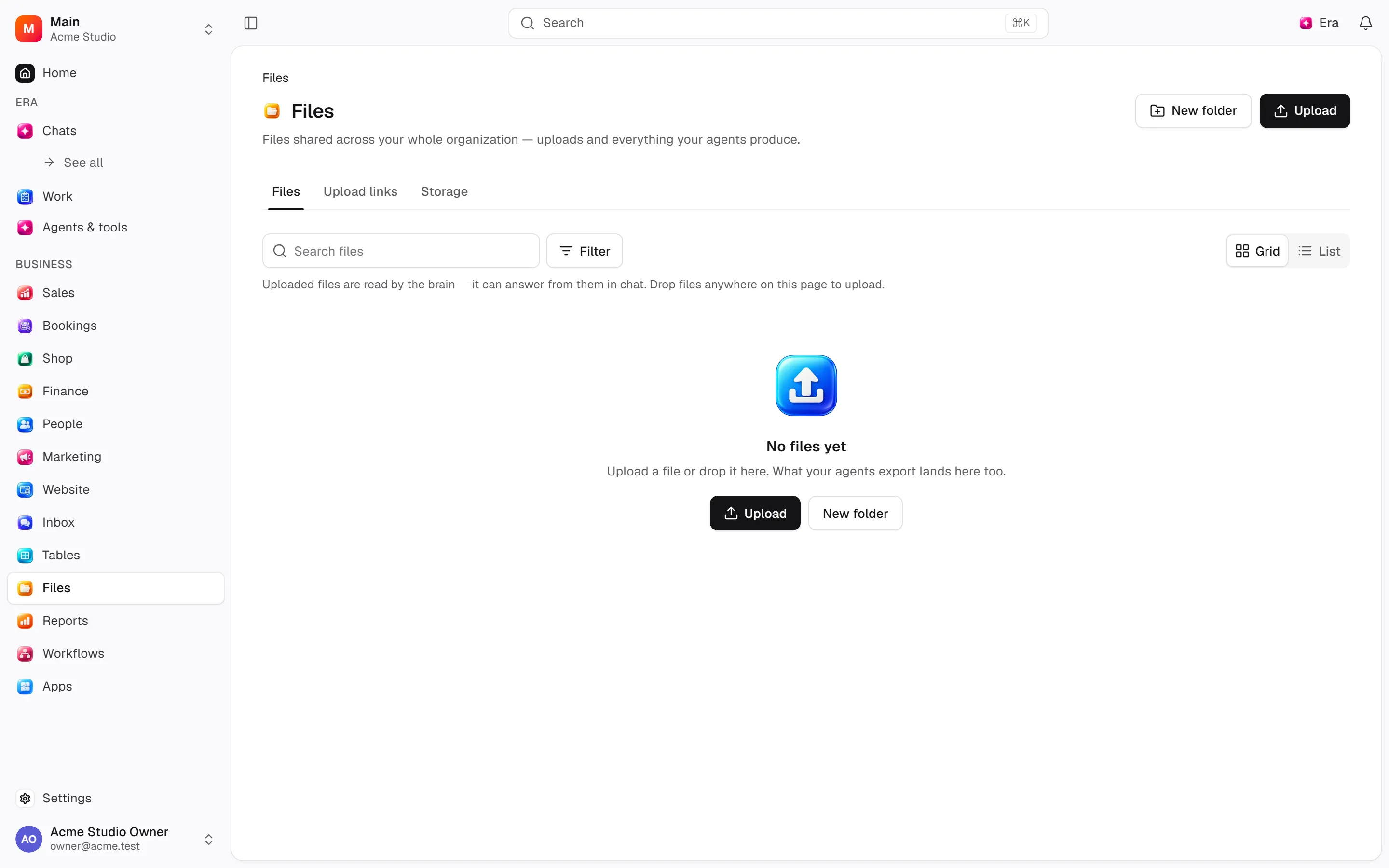
Web: open Files. Desktop: Business → Files, using the same record paths. Disabled modules or missing read permission remove the navigation entry.
| Screen / tab | Web path | Usage | Desktop |
|---|---|---|---|
| Files | /files | List, view or tab | Native screen |
| Files | /files/links | List, view or tab | Native screen |
| Files | /files/storage | List, view or tab | Native screen |
Start working
Step 1
Upload/create folders and preview.
Step 2
Edit/replace/attach/detach.
Step 3
Get signed downloads or publish publicly.
Step 4
Create controlled upload links.
Step 5
Review Storage usage/quota/cleanup.
Settings
Option-by-option configuration and screen paths: Settings guide.
There is no separate settings route; the guide distinguishes record options from declared defaults.
Permissions and limits
Before you start
Signed URLs expire; published files are public. Deletion uses retention/cleanup queues.
Role capabilities: Read (read), Write (write), Delete/archive (delete), Manage (manage), Export (export).
Own-record restrictions apply equally to lists, records and Era. Record state or missing data can refuse an otherwise permitted action.
Ask Era
Prepare a PDF-only upload link for this record.
Select relevant records for Era context. Era respects modules/roles; external or confirmation-sensitive work can stop for approval. Use era tools in the terminal to inspect currently available tools.
Automation and events
These declared events are available to module-event triggers. Subscribing does not configure the next operation; choose recipients, conditions and actions separately.
Operation details
The inventory includes record, configuration, visitor and background flows. IDs support Era/automation; not every row is a menu button. Asterisks mark required inputs. Unmapped rows do not imply a visible control.
| Operation and ID | Inputs | Permission | Screen or flow |
|---|---|---|---|
Record an uploaded file · files.upload | File name *, Stored name *, Object key *, Reference URL, Content type, Kind, Size in bytes *, Folder, Category, Produced by agent, Source connector, Artifact kind, Upload link token, Stored by, Workflow run | Write | Record/API/visitor flow; no separate screen button mapped |
Create a folder · files.create_folder | Inside, Name * | Write | Record/API/visitor flow; no separate screen button mapped |
Edit file details · files.update | File *, Name, Alt text, Description, Category | Write | Record/API/visitor flow; no separate screen button mapped |
Save new contents · files.replace | File *, New size in bytes * | Write | Record/API/visitor flow; no separate screen button mapped |
Delete a file or folder · files.remove | File * | Delete/archive | /team/[user] |
Get a download link · files.sign_url | File *, Valid for (seconds) | Read | Record/API/visitor flow; no separate screen button mapped |
Create an upload link · files.create_link | Label, Description, Uploads land in, Maximum files, Maximum size (MB), Accepted types, Expires | Manage | /files/links |
Close an upload link · files.revoke_link | Link * | Manage | /files/links |
Extend an upload link · files.renew_link | Link *, Open until * | Manage | /files/links |
Publish a file · files.publish | File * | Manage | /files, /forms/[id] |
Make a file private · files.unpublish | File * | Manage | /files |
Clean up files · files.sweep | — | Manage | /files/storage |
Attach a file to a record · files.attach | File *, Record type *, Record * | Read | /files |
Remove a file from a record · files.detach | File *, Record type *, Record * | Read | /files |
Related guides
Managing upload links
Steps, actions and related settings.
Settings
Options, screen paths and defaults.
Workflows
Operations managers connect triggered blocks on a canvas with conditions, loops and approval waits.
Files
Steps, actions and related settings.
Technical sources
packages/os-kernel/src/modules/files.ts, packages/os-kernel/src/modules/index.ts, apps/studio/lib/os/navigation.ts, apps/studio/lib/os/settings-groups.ts, apps/era-station/apps/web/src/era/business/screens.ts.
Screen pictures
Word and Excel previews in chat
Open the preview on an attached or generated Word (.docx) or Excel (.xlsx) file card. Web and desktop use the same read-only viewer. Word preserves rich document content; Excel shows named sheets and formatted cell values. The preview limits each sheet to 1,000 data rows and 100 columns, and the workbook to 30 sheets. Download the original for editing or the complete workbook.
The file is read through the authenticated file endpoint with the same workspace permissions. Imported content runs in a sandbox without scripts, forms or external resources. Files over 20 MB are not parsed for preview.
Station local chat files also open in this viewer. Local bytes pass through the existing workspace or expiring file grant, then through your authenticated Era session for conversion. Preview conversion does not save another copy of the file.