Reports and designer
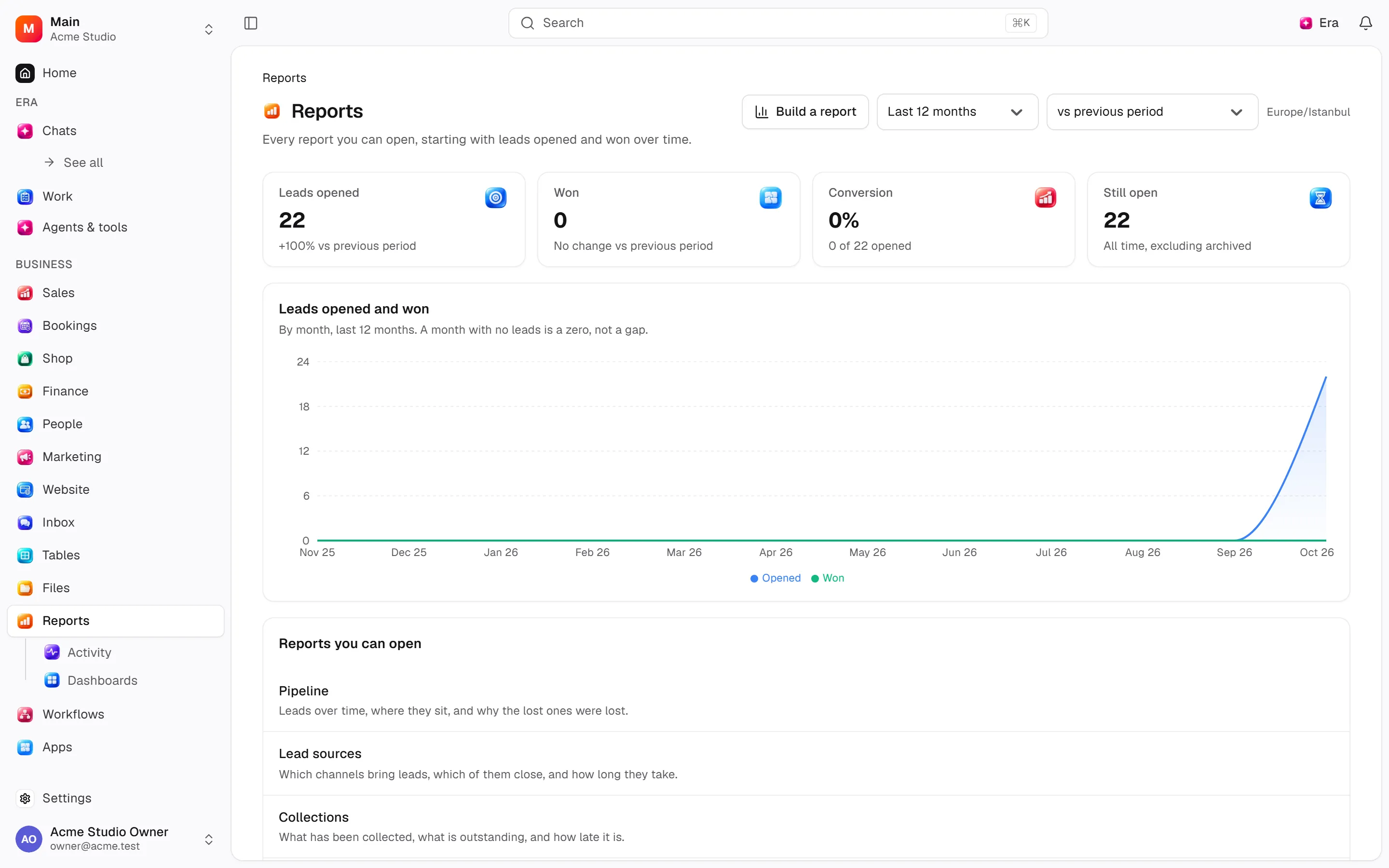
Managers compare sales/team/finance with ready reports and build reports in Explore.
Managers compare sales/team/finance with ready reports and build reports in Explore.
Where to find it
Web: open Reports. Desktop: Business → Reports, using the same record paths. Disabled modules or missing read permission remove the navigation entry.
| Screen / tab | Web path | Usage | Desktop |
|---|---|---|---|
| Reports | /reports | List, view or tab | Native screen |
| Collections | /reports/collections | List, view or tab | Native screen |
| Build a report | /reports/explore | List, view or tab | Native screen |
| Income and expense | /reports/income-expense | List, view or tab | Native screen |
| Pipeline | /reports/pipeline | List, view or tab | Native screen |
| Lead sources | /reports/sources | List, view or tab | Native screen |
| Team performance | /reports/team | List, view or tab | Native screen |
| Receivables aging | /reports/finance/aging | List, view or tab | Native screen |
| Profit and loss | /reports/finance/profit-loss | List, view or tab | Native screen |
| Refunds | /reports/finance/refunds | List, view or tab | Native screen |
| Affiliates | /reports/crm/affiliates | List, view or tab | Native screen |
| Daily sales | /reports/crm/daily | List, view or tab | Native screen |
| Expenses | /reports/crm/expenses | List, view or tab | Native screen |
| Monthly activity | /reports/crm/monthly | List, view or tab | Native screen |
| Sales overview | /reports/crm/overview | List, view or tab | Native screen |
Record tabs and panels
These contributions appear when their modules are enabled and permitted, alongside the record’s own tabs. Check module/permission state if missing.
| Area | Kind | Owning module |
|---|---|---|
| Gift card liability | Contribution | gift_cards |
| Tax collected | Contribution | invoices |
Start working
Step 1
Choose dates/scope.
Step 2
Open pipeline/team/sources/collections/income-expense.
Step 3
Review CRM and finance statements.
Step 4
Select measures/grouping/filters in Explore.
Step 5
Manage delivery and personal access.
Settings
Option-by-option configuration and screen paths: Settings guide.
- Who sees what ·
/settings/reports
Permissions and limits
Before you start
Reports cannot bypass access; money/other people’s measures can be masked. Check dates/modules/access for empty results.
Role capabilities: Read (read), Manage (manage), Export (export), Own records only (own_records_only).
Own-record restrictions apply equally to lists, records and Era. Record state or missing data can refuse an otherwise permitted action.
Ask Era
Compare last month’s wins and collections by source.
Select relevant records for Era context. Era respects modules/roles; external or confirmation-sensitive work can stop for approval. Use era tools in the terminal to inspect currently available tools.
Automation and events
These declared events are available to module-event triggers. Subscribing does not configure the next operation; choose recipients, conditions and actions separately.
Operation details
The inventory includes record, configuration, visitor and background flows. IDs support Era/automation; not every row is a menu button. Asterisks mark required inputs. Unmapped rows do not imply a visible control.
| Operation and ID | Inputs | Permission | Screen or flow |
|---|---|---|---|
Record a report export · reports.record_export | Report *, Window (months) (1–24), Compared with, Rows * (0–10000000), File name | Export | /reports |
Schedule a report by email · reports.create_schedule | Report *, Deliver through *, How often *, Hour (0–23), Weekday (0–6), Months covered (1–24) | Manage | /reports |
Stop a scheduled report · reports.delete_schedule | Schedule * | Manage | /reports |
Send a scheduled report · reports.send_digest | Schedule * | Manage | Background routine |
Export every row · reports.request_export | Report *, Filters, From *, To *, Time zone | Export | /reports/explore |
Related guides
Settings
Options, screen paths and defaults.
Workflows
Operations managers connect triggered blocks on a canvas with conditions, loops and approval waits.
Reports
Reports — modules and detailed settings
Technical sources
packages/os-kernel/src/modules/reports.ts, packages/os-kernel/src/modules/index.ts, apps/studio/lib/os/navigation.ts, apps/studio/lib/os/settings-groups.ts, apps/era-station/apps/web/src/era/business/screens.ts.